
Give us some info for your personalized offer
You log into your analytics, expecting the usual steady numbers. Then, bam. Your Google ranking dropped dramatically, and you have no idea why.
If you’ve been working on SEO for a while, you probably faced this before. We’ve been there too, and more than once.
So what now? Cross your fingers and wait it out? Not really.
We’ve put together a practical plan to help understand what went wrong, what to fix, and how to get your site back on track.
Let’s start!
What is Google Ranking?
Google ranking is the position a website takes on Google’s search engine results pages (SERPs) when users search for specific keywords.
But how does Google decide who gets the top positions? Great question.
In fact, Google has complex algorithms that analyze different ranking factors to assess how relevant your page is, how helpful your content is, and whether your site is trustworthy.
So, when you search for something, the first results you see are the ones Google sees as the most relevant.
The bottom line is that if your site doesn’t check the right boxes, it might end up way down in the search results, where hardly anyone looks.
Why Have My Google Rankings Dropped?
It’s absolutely normal for rankings to fluctuate now and then. Even the most popular websites go through occasional drops. So, don’t panic.
But if your Google ranking dropped dramatically, it’s worth going deeper to understand the reasons behind it.
Below, we’ve put together a list of common causes that can negatively affect your rankings.
- Google algorithm updates: Google changes its rules all the time. Sometimes your site may not fit the new playbook anymore. So, it’s worth checking out the guidelines to avoid penalties or an SEO ranking drop.
- Overoptimization: Trying too hard to fit that keyword into the content? Then, you’re definitely stuffing, which is something Google considers spammy and can push your rankings down.
- Weak content: If your content does not add value or meet your audience’s needs, Google won’t rank it high.
- Competitors are using better strategies: Even if you didn’t do anything wrong, competitors with a better site setup, meta tags, or content can easily outrank you.
- Technical issues։ Broken links, slow-loading pages, or 5xx errors confuse Google’s crawlers and hurt your rankings without you realizing it.
- Poor mobile experience: Since Google considers mobile usability a ranking factor, a site that’s hard to use on phones won’t rank as well.
Now that you know what could be hurting your rankings, let’s check where your pages stand and what you can do about it.
How to Check Google Rankings With Ahrefs
There are lots of SEO tools out there to check rankings, but we like Ahrefs, as it’s reliable and pretty easy to use. Here’s a quick walkthrough:
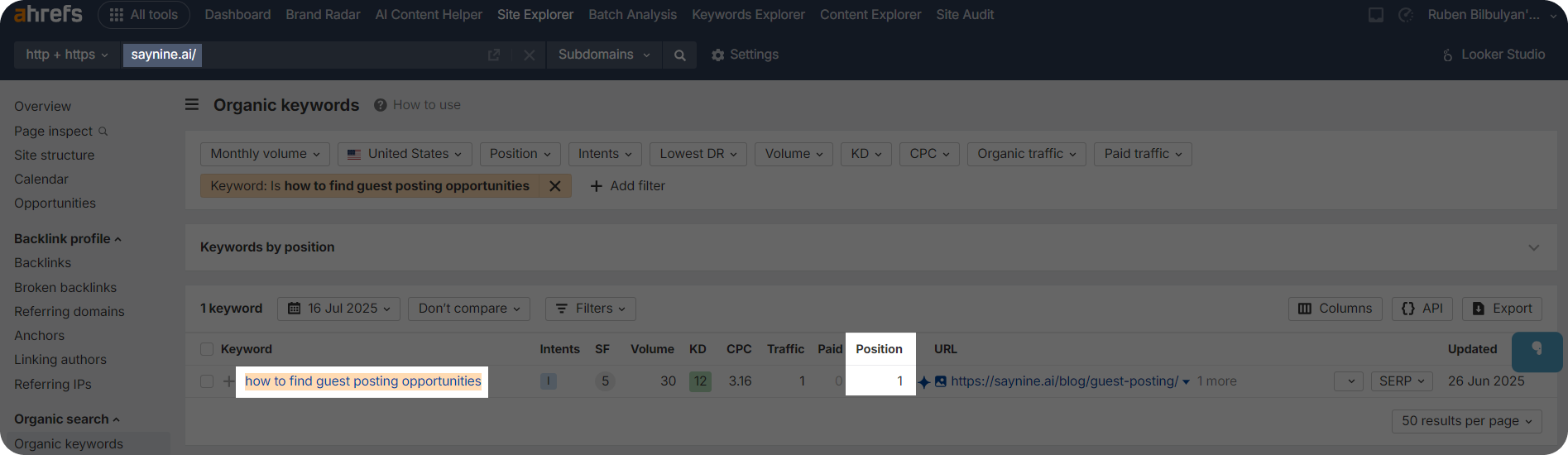
Step 1: Type in your domain into “Site Explorer” and click “Organic keywords.”
Step 2: Choose “Keyword” from “Add filter” and search for a keyword you want to check a position for (e.g., how to find guest posting opportunities).
Step 3: To check the exact keyword match, change the filter rule to “Is.”
Step 4: Choose a location (e.g., United States) to see where your keyword ranks in that specific country.
As you can see, our article about guest posting ranks in the first position for this particular keyword. Not bad, right?
P.S. This is not a one-time task. We recommend regularly tracking keyword position changes to understand if your efforts are working or it’s time to change something.
How to Fix Rankings Drop: A 4-Step Action Plan
Ok, you’ve checked rankings, and the picture is not that good.
Frustrating? Definitely.
Game over? Not even close.
A drop in rankings can happen to anyone, but the good news is, there are clear steps you can take to recover. Our SEO team put together a simple action plan. Let’s break it down!
Check Your Site’s Technical Health
What may seem a small technical issue can really hurt your rankings.
Things like broken links, 5xx errors, redirect chains, and canonical issues can be the reason you are not ranking high on Google.
Instead of guessing what’s wrong, run a full site audit using tools like Ahrefs, Screaming Frog, or Google Search Console. These tools will show you exactly what’s not working.
Once you identify issues, pass them on to your SEO or development team (depending on the issue) to fix these problems before they hurt your rankings.
But technical issues are more than just a few broken links.
If you want a full breakdown of what to look for and how to fix it, check out our Technical SEO Checklist Guide. We’ve covered the most common problems, how to spot them, and the best ways to clean up your site for better rankings.
Polish Your Content
Content is highly important when it comes to rankings, and Google is getting pickier with each core update.
Copying or rephrasing a competitor’s article and calling it a day? That used to work. Not anymore. Now it just leads to a short ranking increase and then a slow or, in worst case, a sudden drop.
Why? Because Google prioritizes people-first content: the kind that actually helps readers and answers real questions.
So, if your Google ranking dropped dramatically, it’s time to review your content and make sure it’s truly useful and unique.
Here’s what to pay attention to:
- Content depth: Talk to experts, run a survey, or share your own experience. That’s the kind of content that Google loves.
- Internal and external linking: Link to relevant sources to improve indexability and help Google easily discover your pages.
- Keywords: Use keywords where they make sense. Too many keywords can actually hurt your rankings.
Want to go deeper? We’ve written some step-by-step guides to help you out:
Further reading:
How to Do a Content Audit in 4 Steps
Content Optimization: 6 Strategies That Work
Review Your Backlink Profile
Backlinks are a Google ranking factor, so if you notice a drop, it’s worth checking out your link profile.
Maybe there are some lost or spammy links that keep hurting your rankings.
A quick backlink audit with Ahrefs can help you find these backlinks. Follow these steps:
Step 1: Type in your domain into the “Site Explorer” and go to “Backlinks.”
Step 2: Filter backlinks by DR and traffic to easily find links from low-metric websites.
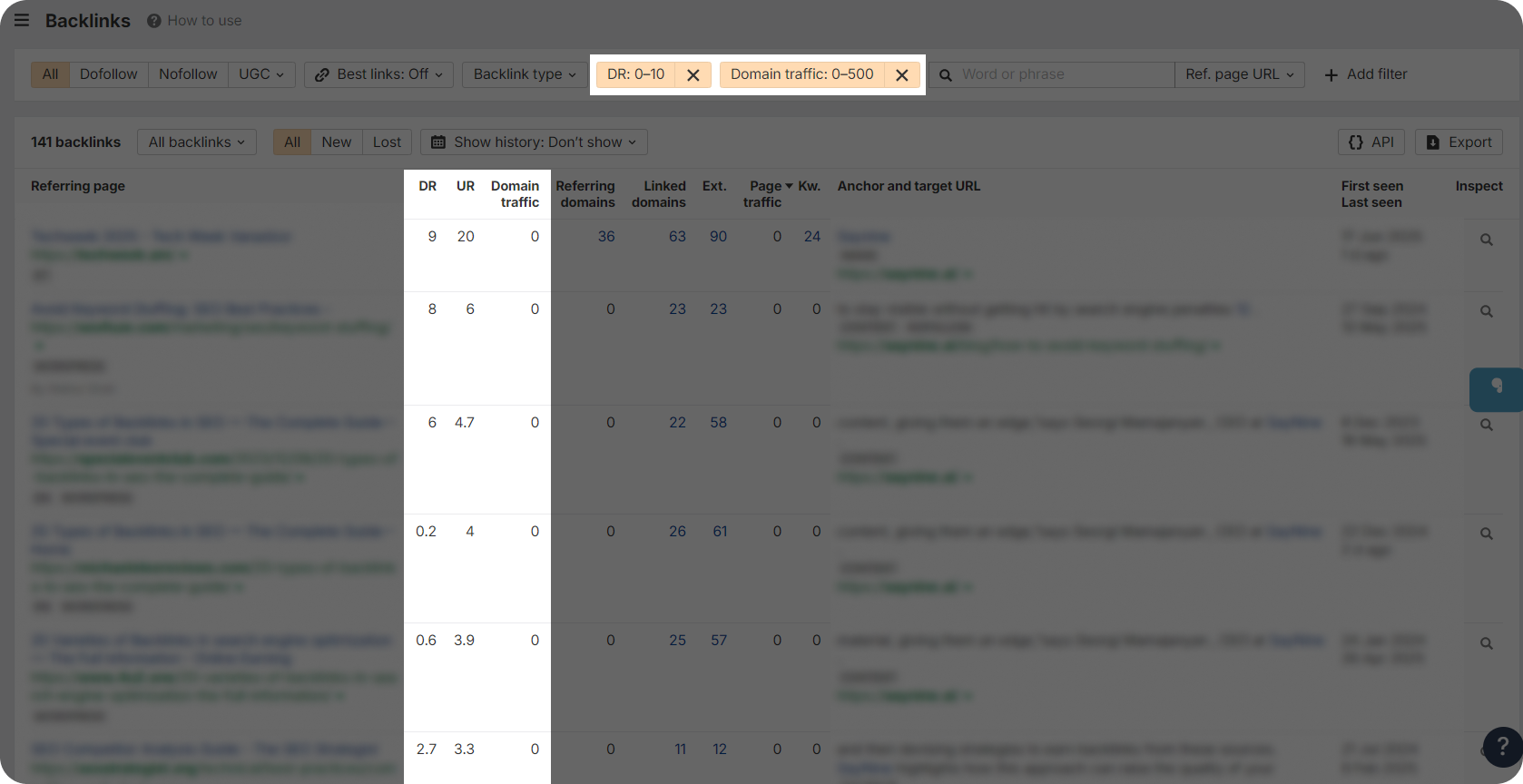
Note: While poor link building metrics don’t necessarily mean that a website is bad, they can raise some red flags, like a warning sign to check out these sources.
Step 3: Once you find and manually review referring domains and backlinks, try to reach out to website editors to remove toxic backlinks. If impossible, make a list of backlinks that you think are dangerous for your SEO performance and disavow them.
Note: We don’t recommend disavowing backlinks unless you’re 100% sure they can hurt your website. It should be your very last choice and done with caution; otherwise, it can damage your rankings even more.
Further reading:
How to Disavow Backlinks
In addition to reviewing the backlinks you’ve already built, we also recommend building new ones to keep improving your rankings.
Aim for at least 10 backlinks for steady growth. However, depending on your target keyword’s difficulty, you might need more to achieve the best spot in search results and outperform competitors.
But you should not chase every backlink, only the non-shitty ones. At our agency, we provide SaaS backlinks from legitimate SaaS or agency websites, which can help you improve your online visibility, traffic, and rankings, of course.
P.S. While you’re thinking about it, your competitors are already getting those links and showing up above you on Google. Just saying.
Implement Fixes & Measure Progress
Finally, do all the necessary changes and track progress.
It may take some time to start seeing improvements in rankings. Don’t expect to jump into the first position after a few days. Patience is key here.
You already know how to check rankings with Ahrefs. So, after a few weeks, take a look to see how metrics have changed.
If still no progress, you probably need some expert guidance. And, look no further, as we provide full SEO services, too. We’ve helped many sites recover their rankings, and we can do the same for you. Just ping us.
How We Turned Things Around After a Major Drop [Real Client Case Study]
One of our clients (who preferred to stay anonymous) came to us after experiencing a significant drop in Google rankings.
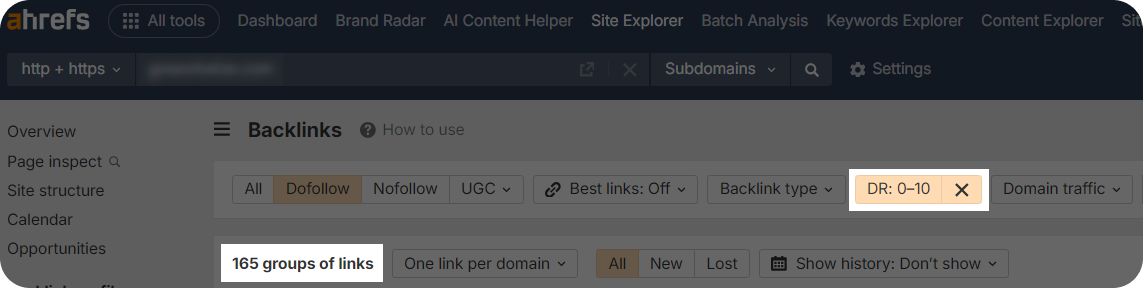
We ran a detailed audit and found the root of the problem: most of their backlinks were from low-traffic, spammy sites, and they had very few unique referring domains overall.
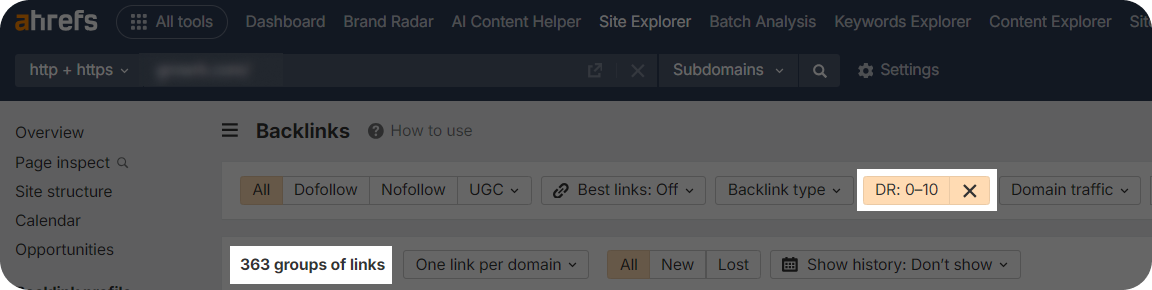
Meanwhile, their main competitor was outranking them with fewer backlinks, but better ones. On top of that, the competitor was regularly publishing content (7–8 posts a month), while our client had barely updated their blog in 2024.
Here’s what we did:
- Disavowed about 100 toxic backlinks
- Built 20–30 high-quality backlinks per month
- Refreshed outdated content and started publishing 1–2 new articles each week
After a few months of consistent work, the site started ranking well again for several important keywords.
So, if Google ranking suddenly dropped, don’t worry. It happens. With the right steps and approach, you can recover from keywords ranking drop just like we did for this client.
Conclusion
So, is there life after a Google rankings drop? Absolutely, yes.
What we recommend avoiding is panicking and making random changes that could hurt your site even more.
And, hey, just a reminder. We’re here to help. Contact us, and we’ll help you figure out what went wrong and get your website moving in the right direction again, with a plan that actually works.
FAQ about Google ranking drop
How to rank no 1 on Google?
Focus on creating useful content that answers what people are searching for, build relevant backlinks, and make sure your website runs smoothly and loads fast.
How long does it take to rank 1 on Google?
It can take from a few months to a year, but it all depends on competition, the backlinks, and how well your content and website are optimized.
What affects Google rankings?
Content, backlinks, website speed, and mobile-friendliness are some of the Google ranking factors. Check the full list here.